
Download Photopea – free online photo editor, browser‑based design tool
Overview: Why Photopea Stands Out in the Free Editing Landscape
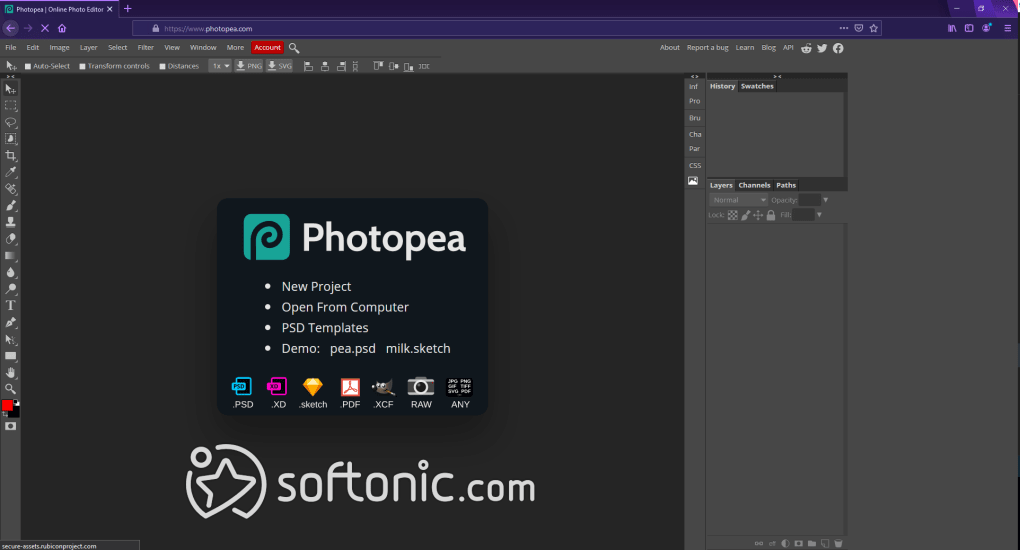
Photopea is a full‑blown, professional‑grade image editor that runs completely in your web browser. Unlike traditional desktop applications that demand a hefty license fee or a subscription, Photopea offers a zero‑cost solution without sacrificing the core tools that designers and photographers rely on daily. Its interface mirrors the look and feel of Adobe Photoshop, which means that anyone who has spent time in Photoshop can transition to Photopea with minimal learning curve. The app supports a massive array of file formats—including PSD, XCF, Sketch, SVG, PNG, JPEG, GIF, and RAW—making it a versatile hub for both raster and vector workflows.
Because Photopea is a Progressive Web App (PWA), you can either use it directly from a browser tab or “install” it as a lightweight app on Chrome, Edge, or any Chromium‑based browser. The installation process does not require any additional download; the app simply caches resources locally, allowing you to work offline for short periods. All edits are saved to your local device, but you can also export directly to cloud services like Google Drive or Dropbox, ensuring your projects stay accessible wherever you go.
Recent updates have taken Photopea’s color handling to the next level, introducing 16‑bit and 32‑bit depth support. This means you can now open, edit, and save high‑dynamic‑range images without resorting to expensive desktop software. The addition of advanced blending modes, smarter brush engines, and a growing library of filters keeps the platform competitive for prosumers who need more than basic touch‑up tools but don’t want to be locked into a subscription.
In short, Photopea provides a free, secure, and constantly updated environment for anyone who needs robust photo‑editing capabilities on the go. Whether you’re a student, a freelance graphic designer, or a hobbyist photographer, the tool delivers enough power to handle complex projects while remaining accessible from any internet‑connected device.
Key Features That Make Photopea a Viable Photoshop Alternative
- Extensive File Compatibility: Open and export PSD, XCF, Sketch, SVG, PDF, RAW, PNG, JPEG, GIF, and TIFF files directly in the browser.
- Layer‑Based Editing: Full support for adjustment layers, smart objects, layer masks, clipping masks, and blending modes.
- Advanced Color Depth: 16‑bit and 32‑bit color handling for HDR workflows, including support for 16‑bit PNG and TIFF.
- Vector Tools: Pen, shape, and text tools that work with SVG and vector layers, allowing illustration and UI design.
- Comprehensive Brush Engine: Customizable brushes, smudge, dodge & burn, healing, and spot removal tools.
- Filters & Effects: Blur, sharpen, liquify, noise reduction, stylize, and a library of artistic filters.
- Non‑Destructive Editing: Smart filters, adjustment layers, and history states that preserve original data.
- Keyboard Shortcuts & Customizable UI: Photoshop‑style shortcuts and dockable panels for a personalized workspace.
- Cloud Integration: Direct saving to Google Drive, Dropbox, and OneDrive, plus import from URL links.
- Free & Open Access: No hidden fees; the core editor is free, with optional premium plans that remove ads.
Each of these features is designed to keep you productive without the need for expensive hardware or software licenses. For instance, the ability to edit PSD files with full layer fidelity means you can receive a client’s Photoshop project, make adjustments on a public computer, and send the updated file back without ever opening Adobe’s suite. The vector capabilities are equally compelling; designers can create scalable icons or UI mockups directly in Photopea, then export as SVG for web use.
The recent introduction of 16‑bit and 32‑bit color depth expands the tool’s appeal to photographers who work with RAW files and need precise tonal control. When combined with the built‑in RAW converter, you can turn a raw capture into a fully edited 32‑bit PSD, all within the browser. This level of flexibility is rare for a free solution and positions Photopea as a bridge between basic online editors and high‑end desktop suites.
Moreover, the UI mirrors Photoshop’s layout, which reduces the learning curve dramatically. Users familiar with Photoshop can rely on the same shortcut keys—Ctrl+Z for undo, B for brush, V for move—while new users benefit from an intuitive toolbar that clearly labels each function. The consistent experience across platforms (Windows, macOS, Linux, Chrome OS) further reinforces Photopea’s reputation as a truly cross‑platform editing solution.
Installation & Usage: Getting Started in Minutes
Step‑by‑Step Installation (No Download Required)
Since Photopea is a web‑based Progressive Web App, there is no traditional installer. To start, open your preferred Chromium‑based browser (Google Chrome, Microsoft Edge, Brave, or Opera) and navigate to photopea.com. Once the site loads, you’ll see a prompt at the top‑right corner offering “Install Photopea.” Click this button, and the browser will add a shortcut to your desktop or start menu, effectively turning the web page into a standalone app.
If you prefer to keep the editor within a regular browser tab, simply bookmark the site. All resources are cached locally, which means after the first load you’ll experience faster subsequent launches and can even work offline for short periods—any changes you make will be stored locally until you reconnect and choose to export or save to a cloud service.
Basic Workflow for New Users
1. Open a File: Click “File → Open” and choose a file from your computer, drag‑and‑drop an image onto the canvas, or paste a URL to load a remote image. Photopea supports opening multiple layers from PSD files, preserving their hierarchy.
2. Adjust Canvas Size: Use “Image → Canvas Size” to set a custom width and height, or start with a blank canvas via “File → New.”
3. Apply Adjustments: Navigate to “Layer → New Adjustment Layer” to add Brightness/Contrast, Hue/Saturation, Levels, Curves, or Color Lookup. All adjustments are non‑destructive and can be toggled on/off.
4. Use Selection Tools: The marquee, lasso, and magic wand tools allow precise selections. Combine them with “Select → Modify → Feather” for smoother edges.
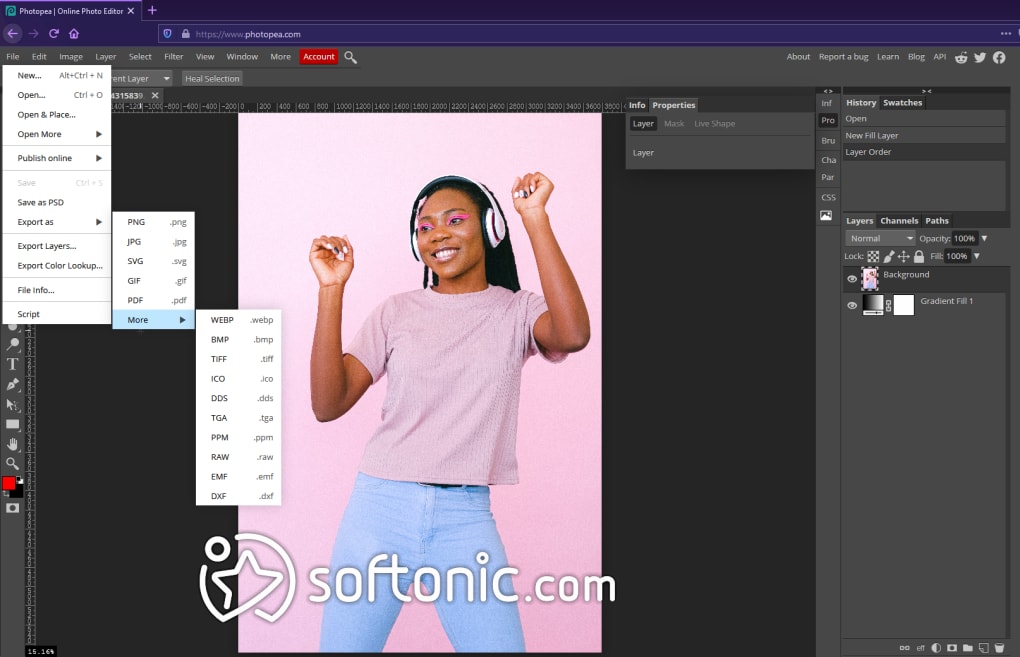
5. Export Your Work: When finished, go to “File → Export As” and choose PSD, PNG, JPEG, SVG, or even PDF. For web‑optimized assets, use the “Save for Web (Legacy)” option to control compression and color profile.
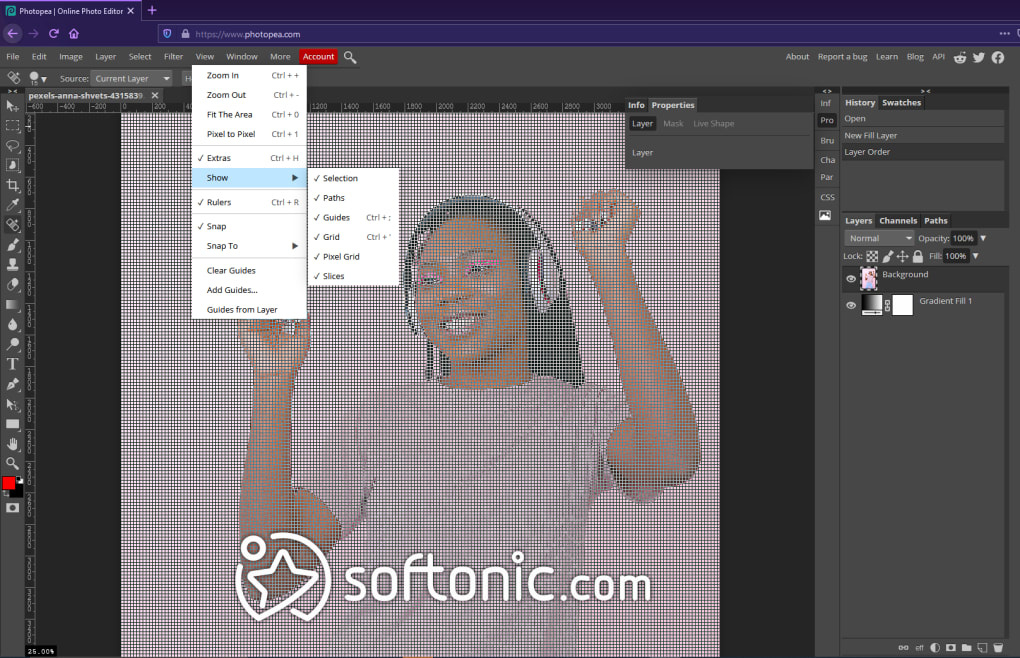
Throughout the process, you can rely on a familiar layer panel, history panel, and properties sidebar. The UI also includes a quick‑access toolbar at the top for common actions such as undo, redo, zoom, and grid toggling. Because everything runs in JavaScript and WebGL, performance is comparable to lightweight desktop editors, even on modest hardware.
Compatibility and System Requirements
Photopea works on any modern operating system that can run a Chromium‑based browser. This includes Windows 10/11, macOS Monterey and later, Linux distributions with Chrome or Edge, Chrome OS, and even mobile browsers on Android and iOS (though the full desktop experience is best on larger screens).
Because the application is cloud‑based, hardware requirements are modest. A minimum of 2 GB RAM and a dual‑core processor are sufficient for basic edits, while 4 GB+ RAM and a graphics‑accelerated GPU (supporting WebGL) improve performance for large PSD files and complex filter stacks. The browser must support HTML5, CSS3, and WebGL 2.0, which all current versions of Chrome, Edge, Safari (≥ 14), and Firefox provide.
For users who prefer the offline PWA mode, the same system specifications apply. The app caches assets locally, but the initial load still depends on an internet connection to fetch the latest JavaScript bundle. Once cached, you can continue editing without connectivity, though saving to cloud services will require a network link.
Security is a top priority. All data transmitted between your browser and Photopea’s servers is encrypted via HTTPS, and the app does not store any of your images on the server unless you explicitly use the cloud‑save feature. This means you retain full control over your intellectual property, a crucial factor for professional designers handling client assets.
Overall, Photopea’s low entry barrier and broad OS support make it an excellent choice for students, remote workers, and anyone who needs a powerful editor without committing to a specific desktop environment.
Pros and Cons – A Balanced Look at Photopea
Pros
- Completely free for core features; no subscription required.
- Runs in any modern browser – no installation hassles.
- Extensive file format support, including native PSD editing.
- Advanced color depth (16‑bit & 32‑bit) for HDR workflows.
- Non‑destructive adjustment layers and smart objects.
- Familiar Photoshop‑style UI and keyboard shortcuts.
- Regular updates with new tools and bug fixes.
- Offline PWA capability for short‑term work without internet.
- Secure HTTPS connection and local file storage.
- Integrates with cloud storage services for easy collaboration.
Cons
- Performance can lag on very large files compared to native apps.
- Occasional intrusive ads in the free version (removable with premium).
- Missing some high‑end Photoshop features like 3D tools and advanced content‑aware fill.
- Limited video editing capabilities – primarily a static image editor.
- Reliance on a stable internet connection for first‑time load and updates.
While Photopea shines as a free, cross‑platform editor, power users should be aware of its limitations. The absence of certain niche Photoshop features means that studios handling complex compositing or 3D assets might still need the full Adobe suite. However, for most day‑to‑day editing tasks—photo retouching, UI mockups, and graphic design—Photopea offers a compelling mix of speed, flexibility, and zero cost.
Frequently Asked Questions
Is Photopea really free, or are there hidden costs?
Photopea’s core editing features are completely free. The app is supported by non‑intrusive ads, which can be removed by purchasing a modest premium subscription (approximately $9.99 per year). There are no hidden fees for exporting files or accessing any of the major tools.
Can I open and edit Adobe Photoshop PSD files without losing layers?
Yes. Photopea fully supports PSD files, preserving layers, masks, adjustment layers, smart objects, and blending modes. You can edit the file in the browser and export it back to PSD without any loss of information.
Does Photopea work on mobile devices?
Photopea runs on modern mobile browsers (Chrome for Android, Safari for iOS), but the full desktop UI can be cramped on small screens. For a better experience, use a tablet or connect a mobile device to an external keyboard and mouse.
How does Photopea handle privacy and data security?
All communication between your browser and Photopea’s servers is encrypted with HTTPS. The editor does not store your files on the server unless you explicitly save to a cloud service. Your edits remain on your local device, giving you full control over your intellectual property.
Can I use Photopea offline after it’s installed as a PWA?
Yes. Once you “install” Photopea as a Progressive Web App, the core scripts are cached locally. You can launch the app and work on already opened files without an internet connection, but saving to cloud storage or loading new resources will require a connection.
Conclusion – Should You Download Photopea Today?
Photopea delivers a remarkable blend of power, accessibility, and affordability that few other tools can match. Its ability to open, edit, and export Photoshop‑compatible PSD files directly from a browser eliminates the need for costly desktop licenses, making professional‑grade editing reachable for students, freelancers, and remote teams. The recent support for 16‑bit and 32‑bit color depths pushes the platform into the realm of serious photography, while the extensive vector toolkit expands its usefulness for UI/UX designers.
Performance is solid for most everyday projects, and the optional premium subscription removes ads for an uninterrupted workflow. While it doesn’t replace every single feature of Adobe’s flagship suite—especially advanced 3D or content‑aware tools—Photopea excels as a companion app for on‑the‑go edits, quick client revisions, or as a primary editor for users on limited budgets.
Given its zero‑cost entry point, secure HTTPS architecture, and regular feature updates, there is little reason to hesitate. Click the button below to launch Photopea in your browser, and experience a powerful, free photo‑editing solution that works wherever you are.
Photopea offers a surprisingly comprehensive set of tools for a free, browser‑based editor. Its PSD compatibility, advanced color depth, and familiar UI make it a top choice for designers on a budget. Minor performance hiccups on very large files and occasional ads are the only downsides.
- Pros: Free, PSD support, 16/32‑bit, cross‑platform.
- Cons: Ads in free mode, limited high‑end features.



.png)



